
Executing an InterServer WordPress migration requires more than shifting database files. Many website owners assume that copying files and importing a database means the job is complete. However, the period immediately following these steps remains highly volatile. This volatility stems from how global servers handle domain name system changes.
During an InterServer WordPress migration, the transition phase known as DNS propagation can introduce unexpected website errors. Visitors might experience broken links, lost administrative changes, or duplicate database entries. Understanding these potential pain points is essential for maintaining seamless site availability. This guide breaks down exactly what breaks during this critical window and how to prevent it.
Critical Points of Failure in an InterServer WordPress Migration
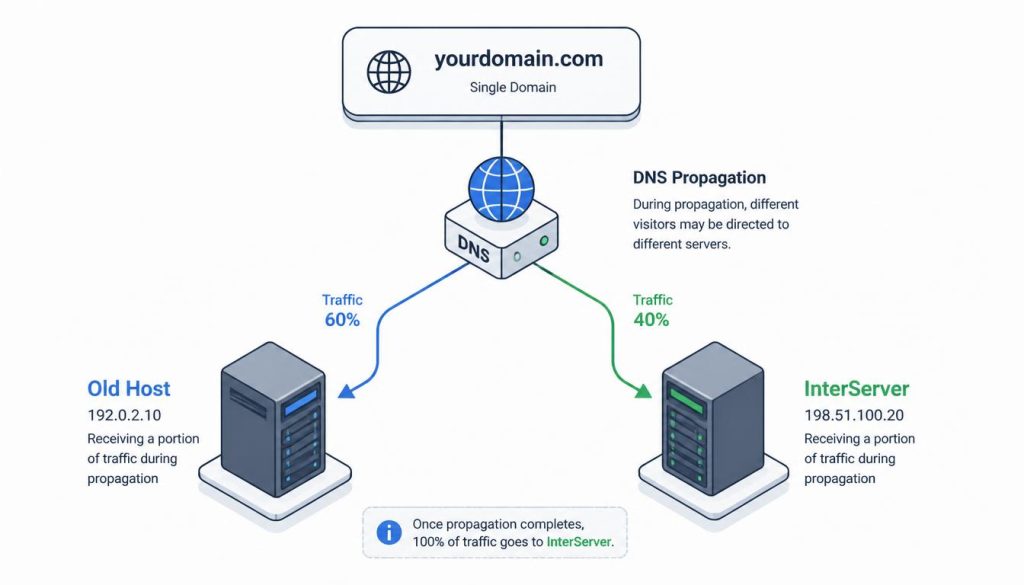
When you change your nameservers, the entire internet does not update instantly. Instead, servers across the globe gradually refresh their cached records. This transition window can take anywhere from a few minutes to a full 48 hours.
During this time, your website exists in a dual state. Some users will land on your old web host, while others reach your new InterServer environment. This split-traffic phenomenon is the root cause of almost every migration failure.
If database writes occur on the old site during this split, that data is permanently lost. Customers might complete purchases, write comments, or update profiles on a server that you will soon decommission. This silent data loss is highly disruptive.
Quick Summary
- DNS propagation creates a split-traffic window where users hit both hosts.
- Database changes made on the old host during this time will be lost.
- Setting low Time-to-Live values before migrating minimizes this risk window.
The Mechanics of DNS Propagation and TTL Limits
Every DNS record has a setting called Time to Live, which dictates how long servers cache your IP address. If your TTL is set to 86,400 seconds, local internet service providers will only check for updates once every 24 hours.
Looking for Blazing-Fast NVMe Cloud Hosting?
ChemiCloud delivers LiteSpeed-powered 100% NVMe storage, free 24/7 migration, a free domain, and an industry-leading 45-day money-back guarantee.
Get Up to 70% Off ChemiCloud Plans Today →This caching behavior is defined by standards managed by the Internet Engineering Task Force to reduce global network traffic. While efficient for daily operations, high TTL values prolong the dual-state window during an InterServer WordPress migration.
Until the TTL expires globally, you cannot guarantee which server a visitor will hit. This lack of control causes session drops and login issues. Users attempting to access the WordPress dashboard may find themselves kicked out repeatedly.
Why Your SSL Certificate May Fail During Migration
Security certificates require domain ownership verification before they can fully secure your connection. During an InterServer WordPress migration, the automated Let’s Encrypt system on cPanel may attempt to renew or issue a certificate before the DNS points to InterServer.
If the certificate authority queries your domain and hits the old server, validation fails. Consequently, visitors reaching the new InterServer site will see an alarming privacy warning. This error damages user trust instantly and can harm search engine rankings if left unresolved.
Step-by-Step Guide to a Safe InterServer WordPress Migration
To avoid these issues, you must execute the migration in a highly structured order. This manual path ensures that your data remains synchronized and your site stays secure throughout the transition.
First, log in to your existing hosting control panel and locate the database management tool. Export your database as a compressed SQL file. Next, download all files from your public_html directory using a secure file transfer protocol client.
Second, log in to your InterServer cPanel dashboard to prepare the environment. Navigate to the MySQL Database Wizard and create a new database, user, and password. Write these credentials down, as you will need them shortly.
Third, upload your website files to the InterServer public_html folder. Open the file manager, select your wp-config.php file, and update the database name, user, and password fields to match your new InterServer settings.
Fourth, open phpMyAdmin within your InterServer cPanel and import the SQL file you exported earlier. Your files and database are now staged on the new infrastructure, but you should not change your nameservers yet.
⚠️ Common Issue: Error Establishing a Database Connection
Symptom: The website displays a white screen with a database connection error message after updating wp-config.php.
Likely cause: The database credentials in wp-config.php do not match the new database user or password created in the InterServer cPanel, or the host is incorrectly specified.
Resolution: Re-verify the database name, username, and password in cPanel. Ensure the MySQL host is set to ‘localhost’ in your wp-config.php file, as InterServer database services run locally on the web server.
Post-Migration Testing and Local Verification
Before updating your DNS records, you must verify that the staged site functions perfectly. Since the live domain still points to your old host, you must bypass global DNS routing to view the InterServer setup.
This bypass is achieved by editing the local hosts file on your personal computer. This file allows you to map your domain directly to the new InterServer IP address for your machine only.
Open your operating system’s hosts file and add a line containing your InterServer IP address followed by your domain name. Save the file and load your website in a private browsing window.
You are now viewing the site directly from the InterServer hardware. Test your navigation menu, submit a contact form, and log in to the admin panel. Resolving errors at this stage prevents them from impacting public visitors.
Key Takeaways
- Editing your local hosts file lets you preview the migrated site before altering DNS.
- Testing local forms and logins ensures your InterServer database configuration is correct.
- Clean browser caches are required to prevent your computer from serving cached DNS records.
Executing the DNS Cutover and Monitoring Propagation
Once local testing is complete, you can safely finalize your InterServer WordPress migration by updating your DNS. Log in to your domain registrar’s console and replace the old nameserver records with your InterServer nameservers.
To track the progress of these changes, use a global DNS resolution tool. These tools query servers in multiple countries to show which IP address they return. We recommend checking with the Internet Assigned Numbers Authority to verify your new root server parameters are broadcasting correctly.
Keep your old hosting account active for at least seven days after updating your DNS. This buffer ensures that any lagging networks still querying your old host do not encounter a dead server.
Evaluating InterServer Performance and Infrastructure Limits

When moving your site to InterServer, it is crucial to analyze how their standard hardware handles WordPress resources. InterServer provides standard solid-state drives and unlimited transfer bandwidth on their shared packages.
These features support moderate traffic levels efficiently. However, resource allocation limits are strictly enforced on shared servers. If your WordPress site utilizes heavy page builders or excessive plugins, you may encounter memory limit errors.
To mitigate this, optimize your database tables and implement a robust caching setup immediately after your InterServer WordPress migration. This optimization keeps physical resource consumption within the allowed thresholds.
Pros
- Highly affordable monthly pricing without long-term contract lock-ins.
- Generous storage and bandwidth allocations on shared hosting plans.
- Standard cPanel interface makes file and database management intuitive.
Cons
- Resource limits on shared plans can bottleneck complex, unoptimized sites.
- Automatic SSL provisioning can sometimes delay during DNS transition windows.
Skip If: You manage high-traffic e-commerce storefronts or resource-heavy applications requiring dedicated CPU allocations from day one.
Frequently Asked Questions
How long does DNS propagation take after an InterServer WordPress migration?
DNS propagation typically takes between 24 and 48 hours to complete worldwide. However, if you lowered your domain’s Time-to-Live (TTL) value before initiating the InterServer WordPress migration, the update can occur in as little as 1 to 4 hours. Keep both old and new hosting accounts active during this period to avoid downtime.
Will my emails stop working during the nameserver transfer?
Yes, if your email accounts are hosted on your old server, they will experience disruption unless you migrate your mailboxes and reconfigure your MX records on InterServer before changing nameservers. Ensure you set up identical email accounts in InterServer cPanel prior to updating your DNS coordinates to prevent lost messages.
Can I use InterServer’s free migration service instead of doing it manually?
InterServer offers free website migration for new accounts, provided you have a full cPanel backup from your previous host. While this automated service saves time, understanding the manual InterServer WordPress migration process remains crucial for troubleshooting potential DNS and database connection errors that may arise post-transfer.