

Planning on migrating a WordPress site to Hostinger? The process seems simple until DNS propagation begins. Many site owners expect a seamless transition but instead face unexpected downtime. This guide analyzes exactly what breaks during this critical phase and how to prevent errors.
DNS propagation is the timeframe during which global servers update their records. When you change your nameservers, the internet does not update instantly. This delay creates a temporary split-screen effect for your audience.

Why DNS Propagation Is a Vulnerability Window
During the process of migrating a WordPress site to Hostinger, files and databases exist in two places at once. The old hosting server remains active while the new Hostinger server waits for traffic. DNS propagation is the process of routing users to the new destination.
This transition phase usually takes anywhere from 2 to 48 hours to complete. Global internet service providers update their cache databases at different speeds. Consequently, some visitors will see your old website while others see the new one.
In Short
- DNS propagation creates a temporary dual-state where two versions of your site exist online.
- This transition process is dictated by global internet service providers and cannot be bypassed.
- Managing user traffic during this window is crucial to prevent data loss.
What Actually Breaks When Migrating a WordPress Site to Hostinger
Several technical elements consistently fail during the propagation phase. Understanding these weak points helps you prepare countermeasures before changing your nameservers.
First, database desynchronization is a major issue for active sites. If users can still post comments or make purchases, those actions might execute on the old server. Once propagation finishes, those updates are permanently lost.
Looking for Blazing-Fast NVMe Cloud Hosting?
ChemiCloud delivers LiteSpeed-powered 100% NVMe storage, free 24/7 migration, a free domain, and an industry-leading 45-day money-back guarantee.
Get Up to 70% Off ChemiCloud Plans Today →Second, automated background tasks often fail. WordPress cron jobs rely on consistent domain routing to execute scheduled posts or backups. When DNS queries resolve unpredictably, these scheduled tasks fail to trigger.
Third, asset loading issues frequently occur. If your site uses hardcoded URLs, assets may load from both servers simultaneously. This mixed delivery triggers security blocks in modern browsers.
⚠️ Common Issue: Database Desynchronization
Symptom: Customer orders, user registrations, or blog comments submitted during migration are missing from the new database.
Likely cause: The domain was still resolving to the old host for some users while others were routed to Hostinger, splitting database inputs.
Resolution: Put your old WordPress site into read-only mode or display a maintenance banner before changing your nameservers. This prevents users from making changes during propagation.
How to Execute the Hostinger DNS Transition Safely
Minimizing downtime requires a structured approach to your DNS records. Hostinger provides tools in the hPanel dashboard to manage this switch efficiently.
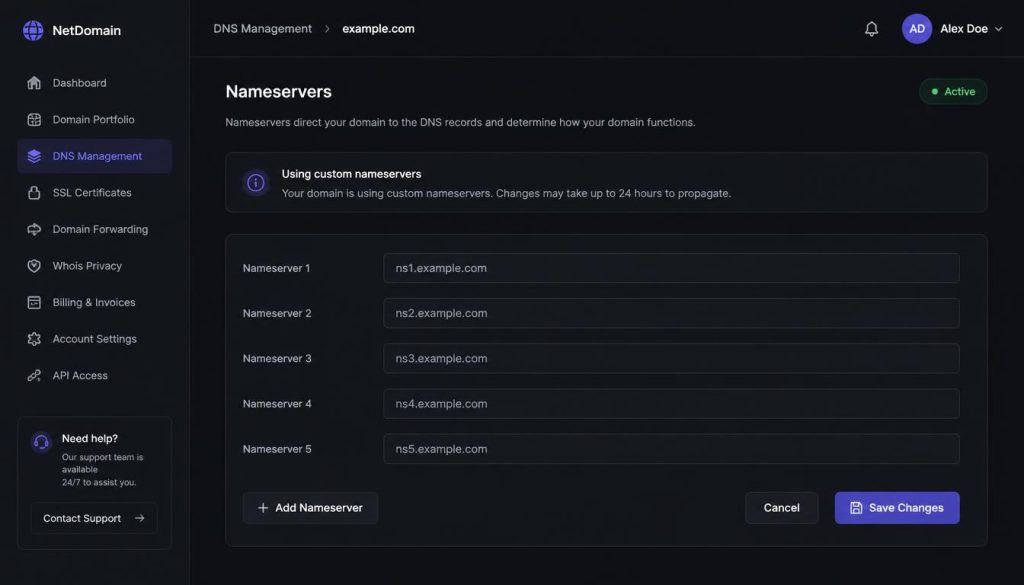
To start, log in to your Hostinger Account and navigate to your hosting dashboard. When migrating a WordPress site to Hostinger, click on Domains, select your domain, and locate the Nameservers section. Replace your current nameservers with the ones provided by Hostinger.
According to guidelines from the Internet Corporation for Assigned Names and Numbers, registration records must match the physical hosting location to avoid routing loops. Ensuring your A record points to the exact IP address of your new Hostinger server completes this transition.
⚠️ Common Issue: SSL Handshake Failure
Symptom: Visitors encounter a “Your connection is not private” error when trying to access your site during propagation.
Likely cause: The SSL certificate on Hostinger has not fully generated, or the user’s browser is expecting the old host’s certificate.
Resolution: Navigate to hPanel, click on Security, and select SSL. Force the installation of the free Let’s Encrypt certificate for your domain so it is active the moment DNS resolves.
Testing and Verifying Propagation Success
You should never assume propagation is complete just because your local connection resolves to Hostinger. Network caching can easily trick your web browser.
Successfully migrating a WordPress site to Hostinger requires verifying that every global server points to the new destination before making updates. Use a global testing tool to verify the actual state of your migration.
Websites like DNS Checker allow you to see how your records resolve across dozens of worldwide servers. A uniform green checkmark across all regions indicates propagation is successful. You should also clear your local DNS cache to see accurate results.
Key Takeaways
- Never edit your website content or database while DNS propagation is active.
- Verify your global status using specialized testing tools before declaring the migration finished.
- Keep your old hosting account active for at least 72 hours after nameserver updates.
Frequently Asked Questions
Can I speed up DNS propagation?
You can lower your DNS Time-to-Live (TTL) value to 300 seconds a day before migrating a WordPress site to Hostinger. This change forces servers to update cache records more frequently.
Will my emails break during propagation?
Yes, email delivery can fail if your MX records are not correctly mirrored on Hostinger. Always copy your existing email records to the Hostinger DNS zone before updating nameservers.
Is it safe to cancel my old hosting immediately?
No, you should wait at least three days. Some regional internet service providers cache old DNS records much longer than the standard 24-hour propagation window.