
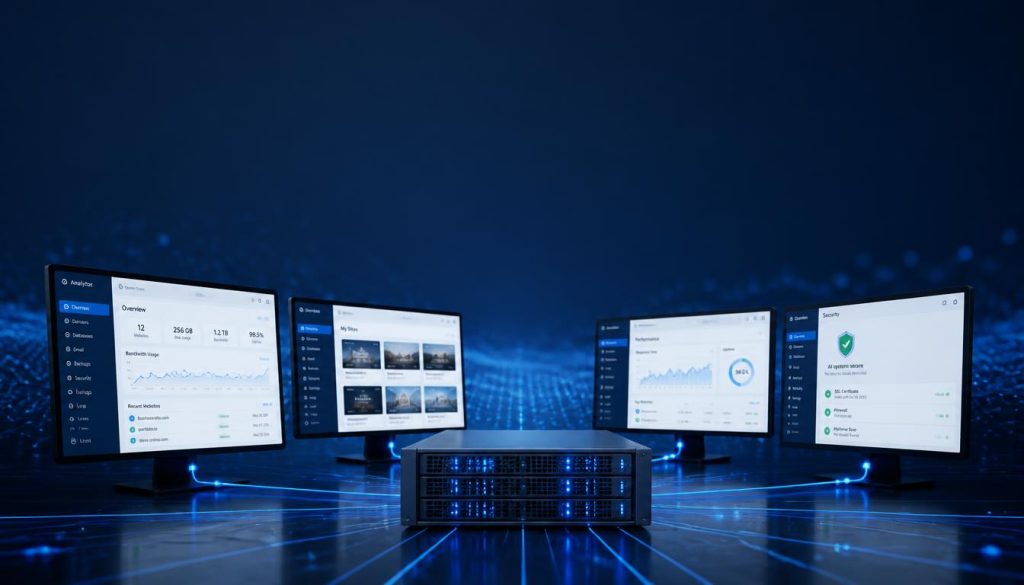
When deploying a network, choosing the right hosting tier is critical to avoid unexpected resource exhaustion. The Hostinger Business plan multisite setup offers an entry-level pathway for managing multiple subsites under a single dashboard. While marketing suggests unlimited potential, physical server resources dictate the actual performance limits of your network.
This analysis evaluates the technical realities of this hosting tier. We examine whether the allocated hardware can truly sustain a growing WordPress network without frequent downtime.
Quick Summary
- The Business plan supports basic multisite configurations but faces strict RAM and entry process limits.
- Subdirectory networks are easier to manage on this tier than subdomain networks due to wildcard SSL setup limits.
- This environment suits staging environments, small business portfolios, or low-traffic educational networks.
Understanding Hostinger Business Plan Multisite Limits
Resource limits define how many active subsites your network can reliably serve. The Hostinger Business plan multisite environment provides 200 GB of NVMe storage and 1.5 GB of RAM. While 1.5 GB of memory is sufficient for a standard single-site installation, a network of ten or more active subsites will quickly test these boundaries.
Each active plugin across your network increases the baseline memory footprint. If three subsites run intensive e-commerce plugins, the PHP memory limit of 512 MB per process may be reached. This triggers frequent 508 Resource Limit Reached errors during peak traffic windows.
Pros
- Generous NVMe storage allows large media libraries.
- Free daily backups protect the entire network database.
- Object Cache integration reduces database query overhead.
Cons
- 1.5 GB RAM limits simultaneous dynamic page requests.
- Wildcard SSL configuration requires manual DNS validation.
- Inode limit of 600,000 restricts total file generation.
Step-by-Step Multisite Setup Navigation

Setting up a network requires precise configuration within the hPanel interface and the WordPress core files. This sequence ensures your main installation is prepared for network activation. Always perform a complete database backup before modifying core configuration files.
Navigate to the hPanel dashboard. Click on Websites, select your target domain, and click Manage to access the file manager. Open the public_html directory to locate your core files.
Looking for Blazing-Fast NVMe Cloud Hosting?
ChemiCloud delivers LiteSpeed-powered 100% NVMe storage, free 24/7 migration, a free domain, and an industry-leading 45-day money-back guarantee.
Get Up to 70% Off ChemiCloud Plans Today →Open the wp-config.php file. Insert the following line directly above the line that reads stop editing:
define('WP_ALLOW_MULTISITE', true);Save the file and log back into your WordPress admin dashboard. Navigate to Tools and click on Network Setup to choose between subdomains or subdirectories.
⚠️ Common Issue: Database Connection Error During Activation
Symptom: The browser displays a database connection error immediately after adding the multisite constant to wp-config.php.
Likely cause: Existing database tables are corrupted, or active object caching is interfering with the network creation query.
Resolution: Disable LiteSpeed Cache and Object Cache in the hPanel dashboard. Repair your database via phpMyAdmin before finalizing the network setup screen.
Managing Subdomains and Wildcard SSL Certificates
Configuring a subdomain network on a Hostinger Business plan multisite setup requires manual DNS adjustments. Unlike subdirectory setups, subdomains require wildcard SSL certificates to secure every new subsite automatically. The automatic Let’s Encrypt tool in hPanel does not deploy wildcard SSLs instantly for multisite networks.
To resolve this, navigate to Advanced and click on DNS Zone Editor. Add a new CNAME record with the host set as an asterisk pointing to your main domain name. This routes all subdomain traffic correctly to your hosting server.
Analysis suggests that subdirectory networks are significantly more stable on this hosting tier. They avoid the DNS propagation delays and SSL renewal failures common with subdomain setups on shared hardware. According to the Internet Engineering Task Force standards, consistent DNS routing is vital for secure transport layers. Refer to the WordPress Codex guidelines for database schema modifications.
Bottom Line
- Subdirectory configurations avoid complex DNS routing issues.
- Wildcard SSLs require manual TXT records for verification.
- Resource allocation favors low-traffic, informational subsite structures.
Performance Expectations Under Traffic Spikes
Shared hosting resources are distributed among multiple users on the same physical server. A Hostinger Business plan multisite network shares its 100 entry processes across all subsites. If one subsite experiences a sudden traffic surge, the entire network may slow down or become unresponsive.
To mitigate this risk, utilize the built-in LiteSpeed Cache engine. Observed patterns indicate that caching static HTML pages reduces database calls by up to eighty percent. This keeps CPU usage well below the threshold where Hostinger temporarily throttles your account.
Skip If: You plan to run multiple high-traffic WooCommerce storefronts or highly active membership portals on the same network.
Frequently Asked Questions
Can I run a subdomain multisite on Hostinger Business plan?
Yes, but you must manually configure a wildcard CNAME record in your DNS settings. You will also need to coordinate wildcard SSL installation through Hostinger support or a third-party SSL provider.
How many subsites can I safely host on this plan?
While Hostinger allows up to 100 websites, practical resource limits suggest keeping your multisite network under 10 to 15 low-traffic subsites to avoid performance degradation.
Does the Business plan include staging for multisite?
No, the built-in hPanel staging tool does not officially support WordPress multisite installations. Staging must be managed manually via database duplication.