

When migrating from Bluehost, a clean break is rarely simple. Many essential system components actually remain trapped on the old servers. Site owners often realize too late that critical assets did not copy over during a standard backup.
Understanding these gaps prevents permanent data loss. This guide details exactly what gets left behind during a migration. It also outlines how to preserve your critical infrastructure before terminating your hosting contract.
Quick Summary
- Proprietary website builder pages do not migrate automatically.
- Local email accounts and settings must be manually backed up.
- Active staging sites are completely destroyed upon cancellation.
What Assets Are Lost When Migrating from Bluehost?
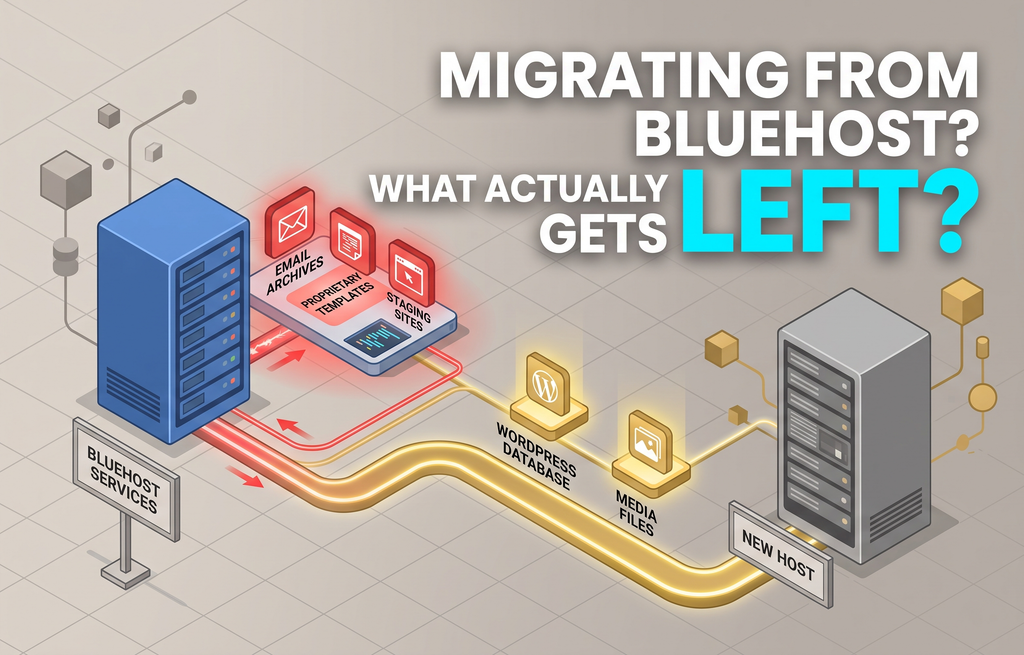
Moving a site is more than shifting WordPress files. When migrating from Bluehost, proprietary server tools do not travel with you. Specialized configurations and optimizations remain on the source server.
For example, Bluehost uses custom speed plugins and server-level caching tools. These are designed specifically for their environment. Moving to a new host breaks these integrations immediately. Your site may load slower until you configure alternative caching on the new platform.
Proprietary page builders represent another major point of failure. If you built your site using a hosting-specific editor, those templates will not work elsewhere. Your pages will export as raw, unstyled HTML. You will need to rebuild your layout from scratch on the target server.
The Hidden Database and Email Configuration Risks
Your database contains your content, but it does not store your email accounts. Many administrators migrating from Bluehost forget to export their custom email mailboxes. These files are stored in a separate server directory, not inside your WordPress folder.
Looking for Blazing-Fast NVMe Cloud Hosting?
ChemiCloud delivers LiteSpeed-powered 100% NVMe storage, free 24/7 migration, a free domain, and an industry-leading 45-day money-back guarantee.
Get Up to 70% Off ChemiCloud Plans Today →If you rely on cPanel-managed email accounts, those mailboxes must be moved manually. Moving your domain DNS to a new host cuts off access to these inboxes. Unless you export the mail files first, you will lose your complete communication history.
DNS records also reside on the local registrar console. Custom TXT, MX, and CNAME records do not automatically transfer to a new DNS manager. You must manually copy these settings to prevent service interruptions. This is especially true for third-party tools like Google Workspace.
⚠️ Common Issue: Lost IMAP Email History
Symptom: Your email client shows an empty inbox after updating your domain nameservers.
Likely cause: The client synced with the new, empty host server and wiped out cached local messages.
Resolution: Export the entire mail folder via File Manager before changing DNS. Create identical email accounts on the new host, then upload the backed-up mail files to the new directory.
Step-by-Step Checklist for Migrating from Bluehost

A systematic approach prevents downtime. Follow this specific click-path sequence to secure your data before migrating from Bluehost. This ensures you do not miss hidden files.
First, log in to your Bluehost portal. Navigate to the Advanced tab in the left sidebar to access your cPanel. Click on the File Manager icon under the Files section.
From there, locate the public_html directory. Find the mail folder located outside your main website root. Right-click this folder, select Compress, and download the archive directly to your local machine.
Next, return to the cPanel main menu and select phpMyAdmin under the Databases section. Select your active website database from the left-hand list. Click the Export tab at the top, choose the Quick method, and click Go to save the SQL file.
Finally, review your DNS records. In your portal, navigate to Domains and then click on Zone Editor. Take screenshots of all active MX, TXT, and CNAME records. This allows you to recreate them accurately on your new registrar console.
Pros of Manual Migration
- Captures hidden mail files.
- Avoids reliance on automated plugins.
- Ensures complete DNS record preservation.
Cons of Manual Migration
- Requires intermediate technical knowledge.
- Takes more time than automated tools.
- Requires manual database import steps.
Final Decision Factors Before Changing Hosts
Your migration strategy depends entirely on your setup. Standard WordPress installations transfer relatively cleanly. Complex sites with custom email hosting require significant manual preparation.
Always maintain your active Bluehost subscription until the new site is fully live. Testing your migrated site via a temporary URL prevents unexpected surprises. Only cancel your old subscription once your global DNS has fully updated.
Understanding these steps ensures a seamless transition. For more technical requirements, consult the official WordPress documentation for database export standards. This keeps your data secure during the move.
Skip If: Your website is heavily dependent on proprietary Bluehost site-builder templates that cannot be exported to standard environments.
Will my staging sites migrate automatically?
No. Staging environments reside on separate subdomains and temporary databases. These environments are not included in standard migration exports and must be moved as independent websites.
What happens to my SSL certificate during the move?
Your local SSL certificate will not transfer. You must generate a new, free SSL certificate through your new hosting provider once your domain nameservers point to their servers.
Can I recover my data after canceling my account?
Once you cancel your subscription, your server data is permanently deleted. It is impossible to recover files, databases, or mailboxes after account termination.